Using the library
This page is for readers: students, researchers, teachers and anyone curious. It shows how to find books, read them, search inside them and cite them. Nothing here needs an account unless the library keeps some books for its members.
Finding books
Type in the search box on the home page and press Search. You can type in Kannada or any
other script, or in Latin letters: hampi also finds books whose title is ಹಂಪಿ… when the
library has recorded a romanised title.
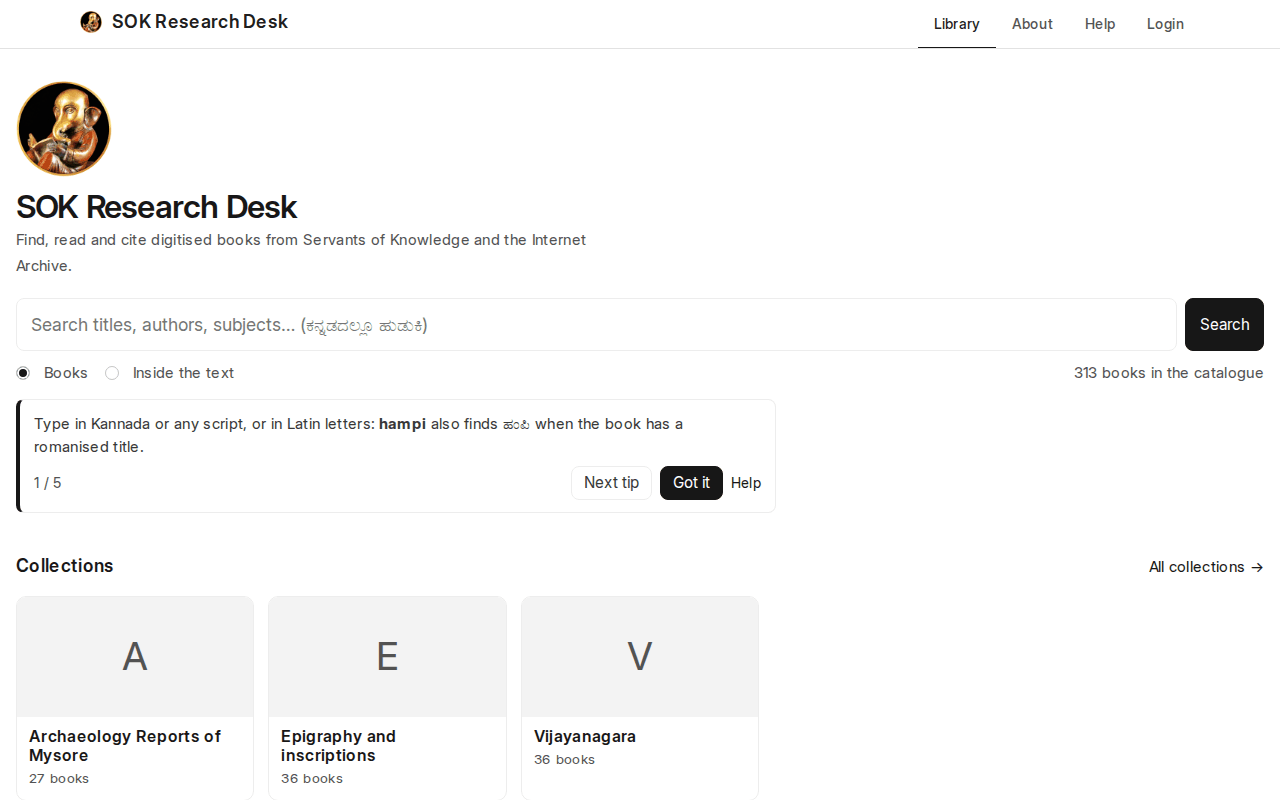
Two kinds of search sit under the box:
- Books looks at titles, authors, subjects, publishers and descriptions. Each result is a book.
- Inside the text looks through every page of every book. Each result is a page, with the words you searched highlighted. Clicking it opens the book at that page.
Filters on the left narrow the results: Collection, Type (book, periodical, thesis…), Language, Decade, Subject, Author and Source collection, plus a range of years. Pick several: Kannada and 1950s gives Kannada books from the 1950s. Sort puts the oldest, newest or alphabetical first.
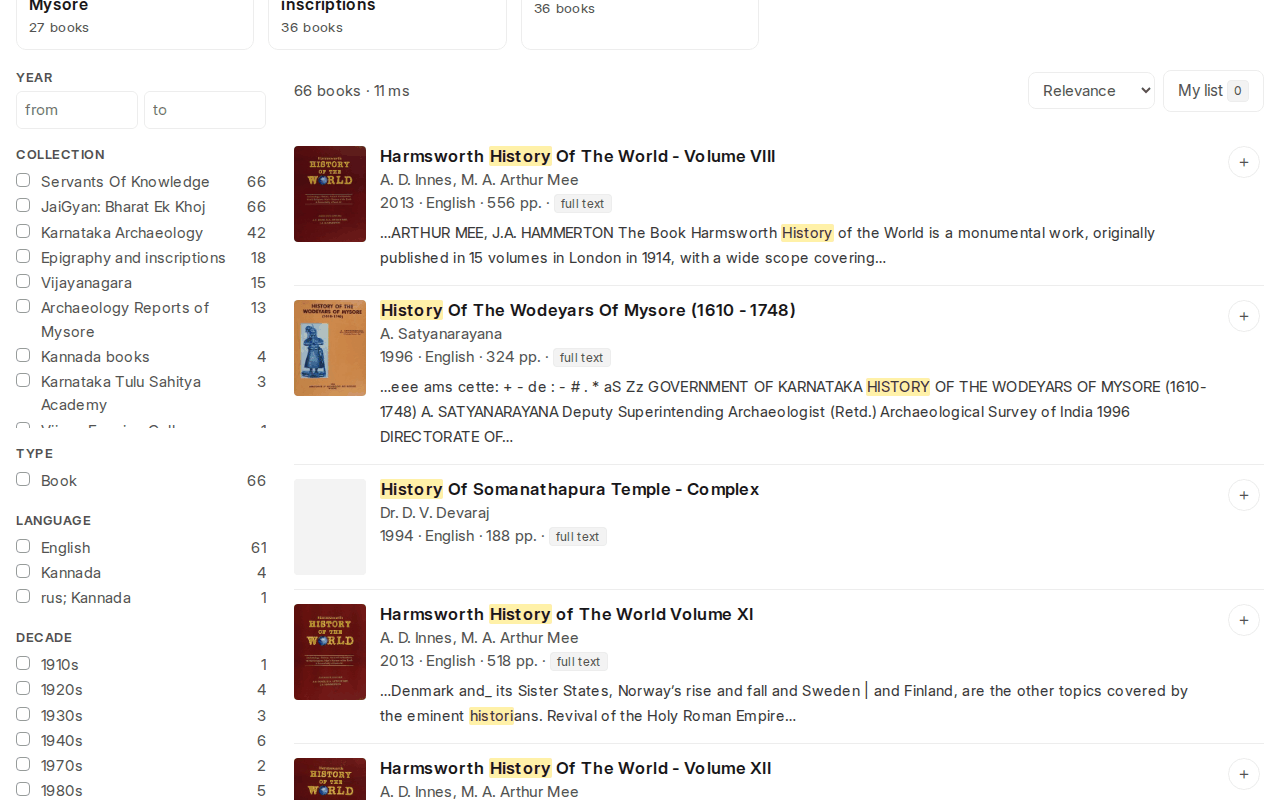
The address in your browser always matches the search, so you can bookmark it or send it to someone. More on searching: Searching.
Collections
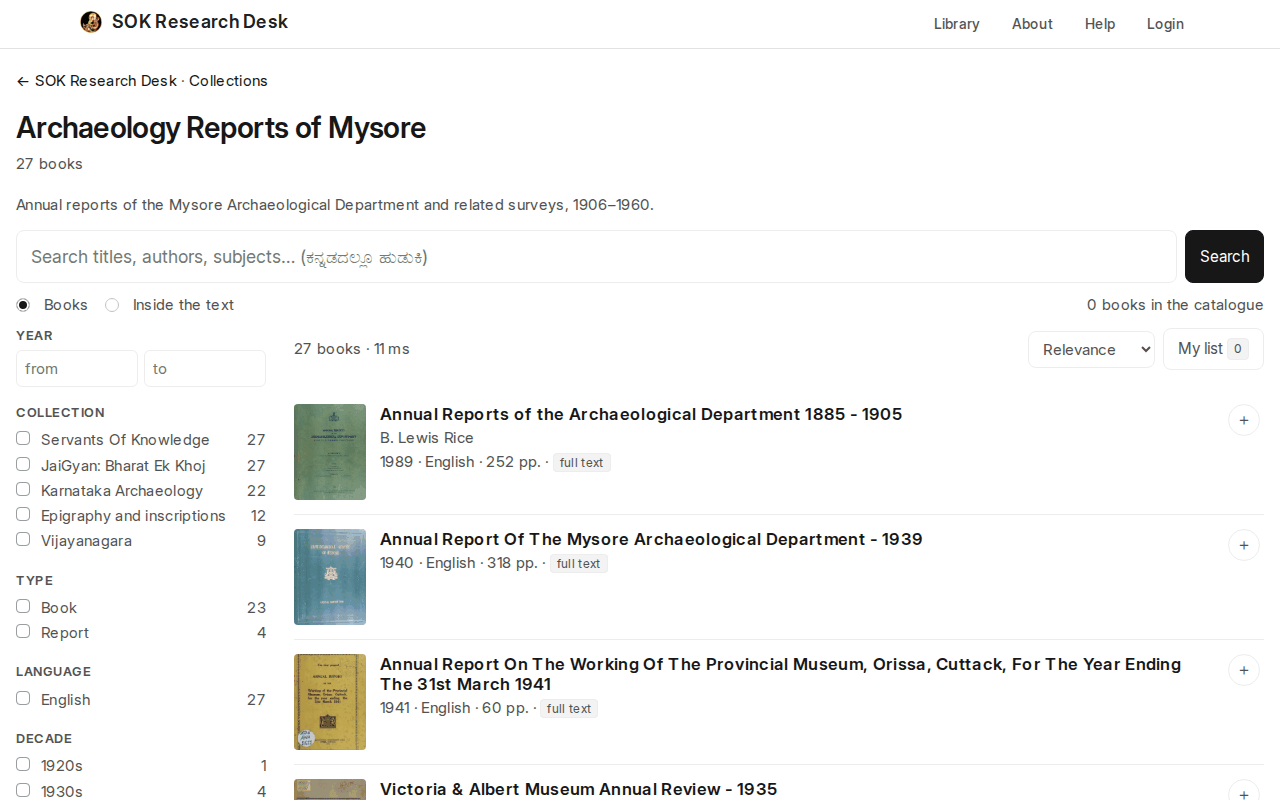
Browse collections (or All collections) on the home page lists the groups of books the library has put together, such as a subject, an author or a course. Each collection has its own page with the same search and filters, limited to that collection.
Reading a book
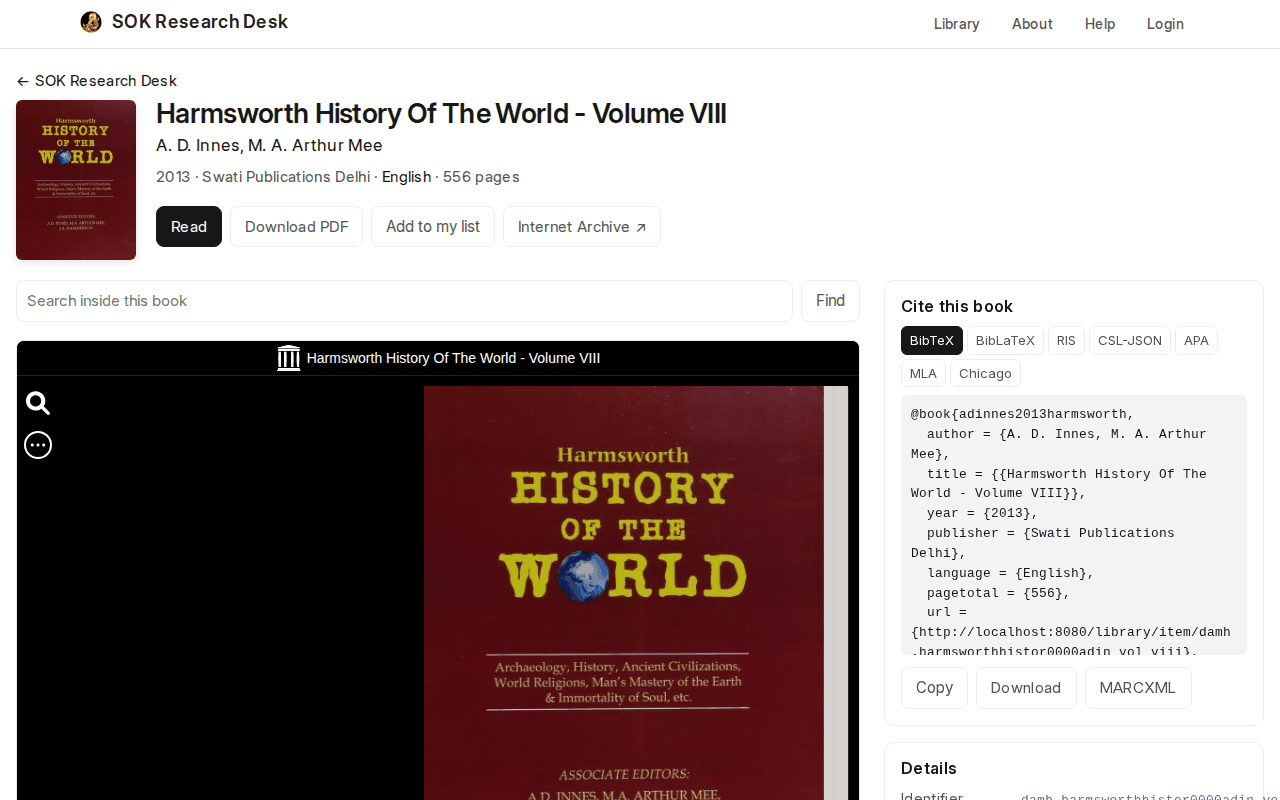
Click a title to open its page. You'll find:
- the reader, to turn pages, zoom and read online;
- Search inside this book: type a word and press Find to list every page where it appears (click one to jump there);
- Download PDF, when the library can share the file;
- the book's details: authors, date, publisher, language, subjects, collections and rights;
- Cite this book and Add to my list (below).
Scans are old books, and the text read from them by machine (OCR) has mistakes. If a search inside the book misses a word you can see on the page, try a shorter form of the word.
Citing a book
Cite this book gives the reference ready to paste in APA, MLA or Chicago style, or as a file for your reference manager: BibTeX, RIS or CSL-JSON (Zotero, Mendeley, EndNote, JabRef, Overleaf). Copy copies it; Download saves it.
With the Zotero Connector in your browser, its button on a book page saves the complete record. More on citing: Citations & reading lists.
My list: collecting books as you go
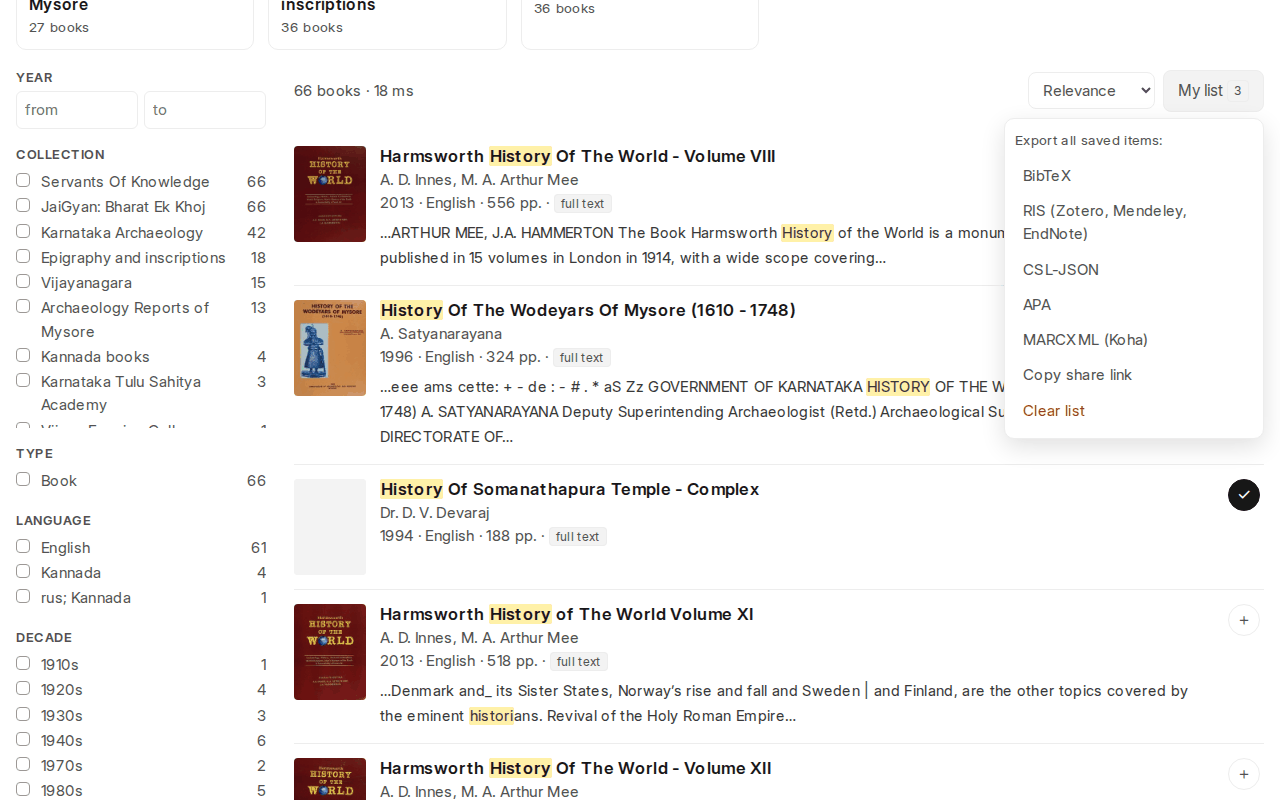
Click + on a search result, or Add to my list on a book page, to keep a book for later. My list (top right of the results) shows how many you have and lets you:
- export all of them at once as BibTeX, RIS, CSL-JSON, APA or MARCXML, for a bibliography;
- Copy share link, which gives an address that adds the same books to anyone's list: handy for a course reading list or a research group;
- Clear list.
Your list is kept in this browser. Using another computer or browser starts a new list, so share the link to yourself if you need to move it.
Books for members
A library can keep some books for its members:
- Login to read: anyone can find the book and cite it; reading, searching inside and downloading need a login, and the book page shows Log in to read.
- Login to find: only members can see that the book exists.
If the library allows it, Create an account on the login page. Some libraries approve new accounts first: until then you see what visitors see, and the library lets you know when you're approved. Ask the library if you're not sure how to join.
Help and tips
Help, in the top bar, opens these pages. The first time you visit, a few short tips appear under the search box on the home page. Close them with Got it, or step through them with Next tip. To see them again, use Show the tips again on the help page.